

Logs & Terminal
Use the built-in log viewer and interactive terminal to monitor and debug running QuickStack applications.
Deployment logs
When a deployment is triggered, QuickStack streams Kubernetes events (pod scheduling, image pulls, container starts and stops) directly into the deployment log alongside the build output. This provides additional context when a deployment is slow or fails — for example, you can see whether a pod is waiting for image pull or failing readiness probes (health check).
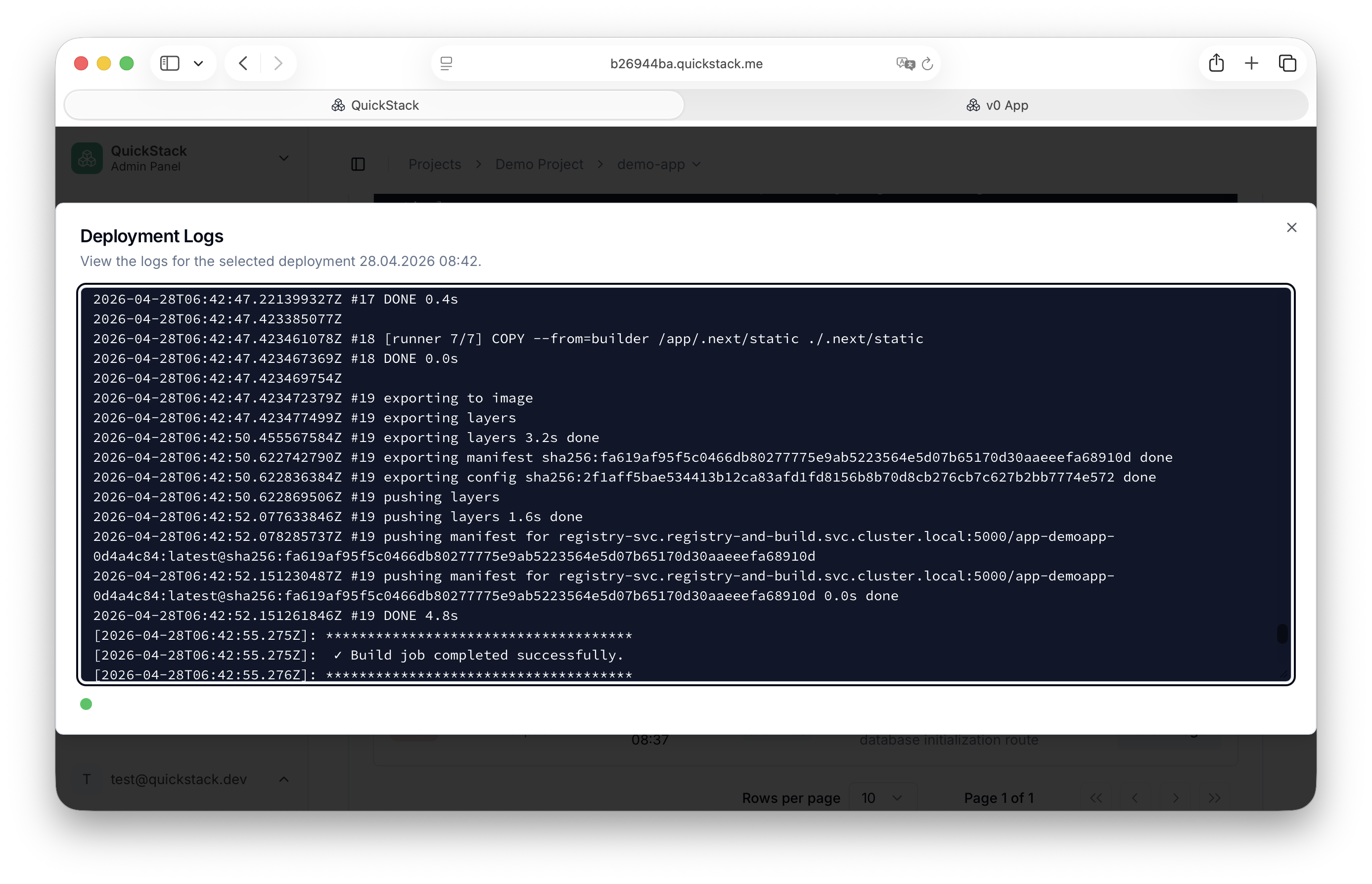
Access deployment logs from the Overview tab by clicking Show Logs next to a deployment entry, or from the global Builds page.
Live App logs
The Logs from running apps are streamed to the app page in QuickStack. Start here when troubleshooting.
- Open your app.
- Go to the Overview tab.
- If your app runs multiple replicas, use the pod dropdown to select which pod to tail.
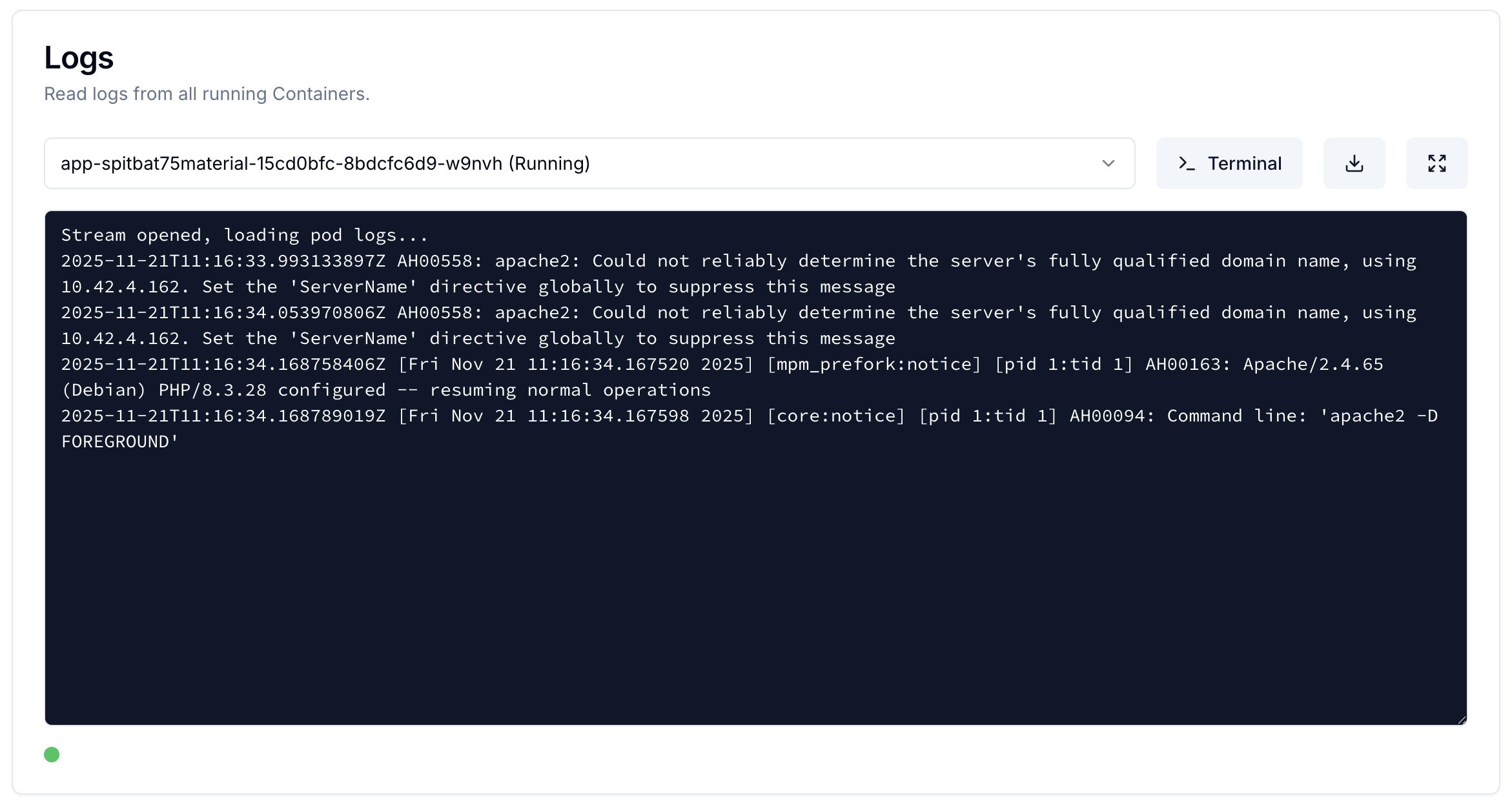
The log viewer keeps the most recent 1000 lines. Older lines are dropped as new ones stream in, so it is safe to leave open.
QuickStack system logs (admin only)
Logs for the QuickStack system pod itself are available to administrators only, from Settings → QuickStack Server → Maintenance → Open QuickStack Logs. Non-admin users cannot stream the QuickStack system logs.
Interactive terminal
The Terminal opens a shell session directly inside a running container from your browser.
Opening a terminal session
- Open your app, go to the Overview tab.
- In the Logs card, click Terminal next to the pod selector.
The Terminal button is only visible if you have Write permissions for the application.

- Choose your shell:
- Start sh — available on almost all Linux containers (including Alpine)
- Start bash — richer experience; requires
bashto be installed in the image
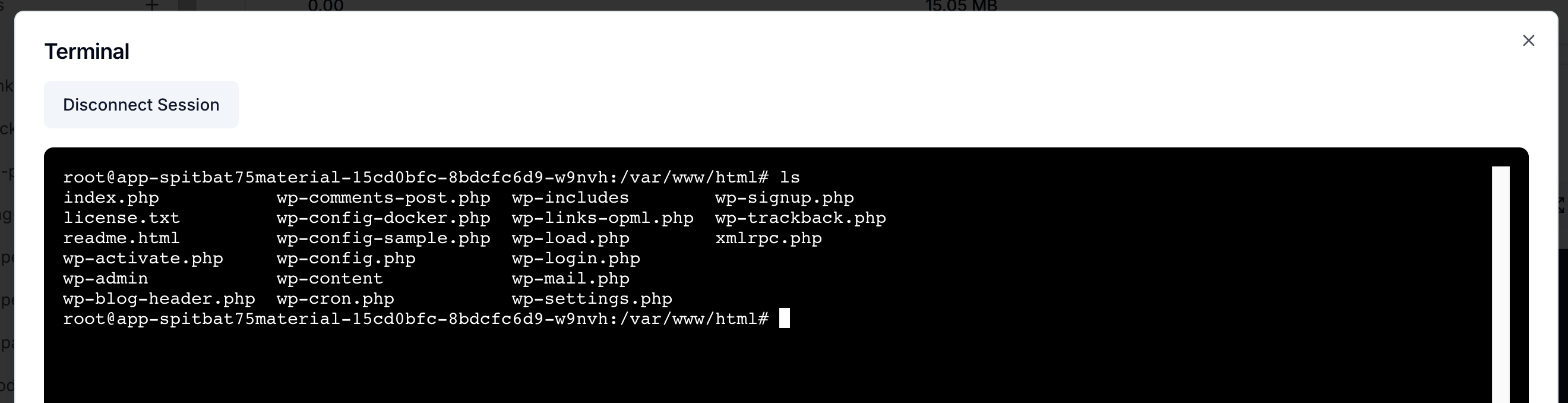
- To end the session, click Disconnect Session or close the dialog.
Limitations
| Limitation | Detail |
|---|---|
| Permissions | Terminal requires Write access to the project |
| Container state | You can only connect to Running containers; crashing containers can't be shelled into |
| Shell availability | bash requires it to be installed in the image; fall back to sh if it fails |
Related
- Health checks
- Updates & maintenance (cleanup old logs)